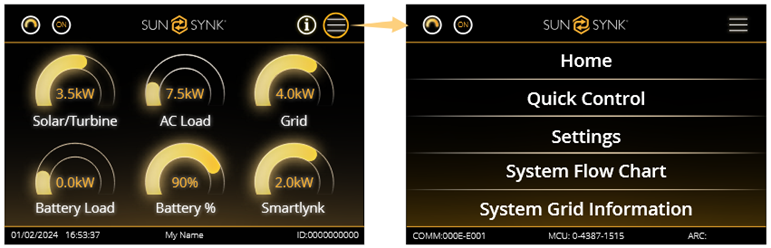
The Menu Screen provides users with access to the core settings and configuration options of the Acure Hybrid Inverter. From here, users can navigate to important sections like System Setup, Quick Control, and Settings. This screen is essential for managing the system’s functionality and viewing system diagnostics. Access this screen by tapping the “Menu” icon on the Home Screen.
MENU OPTIONS
Once you tap the Menu icon, a dropdown screen appears with the following options:
- Home: Returns you to the Home Screen where you can view real-time system status and power flow information.
- Quick Control: Provides fast access to commonly used control options and system settings, such as turning the inverter on/off or adjusting power output.
- Settings: Opens the Settings Menu for detailed configuration options, including battery, grid, inverter settings, and more.
- System Flow Chart: Displays a system flow chart that shows the power generation and distribution process in a graphical format. This is helpful for understanding how energy flows between the inverter, battery, grid, and loads.
- System Grid Information: Provides detailed information about grid connection, including voltage, frequency, and energy exchange between the system and the grid.
Menu | Quick Control
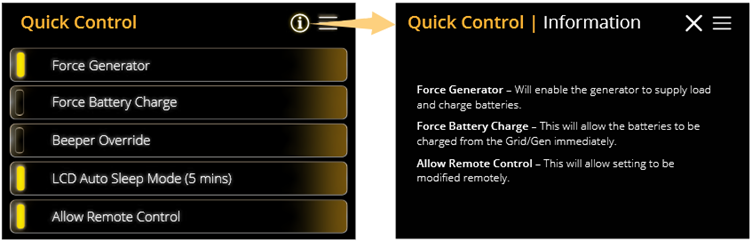
The Quick Control screen provides immediate access to several critical inverter functions, allowing users to quickly toggle settings for specific operational needs. This screen enables quick adjustments to the system, ensuring efficient performance and control when needed. Access this screen by tapping the “Quick Control” option in the Menu.
Menu | Settings
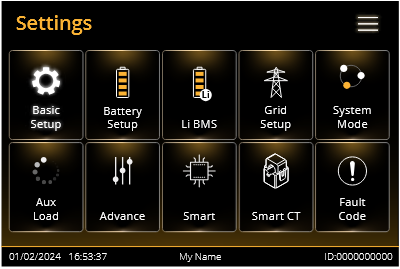
The Settings screen provides access to various configuration and diagnostic menus. Each menu item allows users to navigate to specific areas of the system to customize settings, perform system checks, and adjust operational parameters. This screen is critical for in-depth system management. Access this screen by tapping the “Settings” option in the Menu
Menu | System Flow Chart
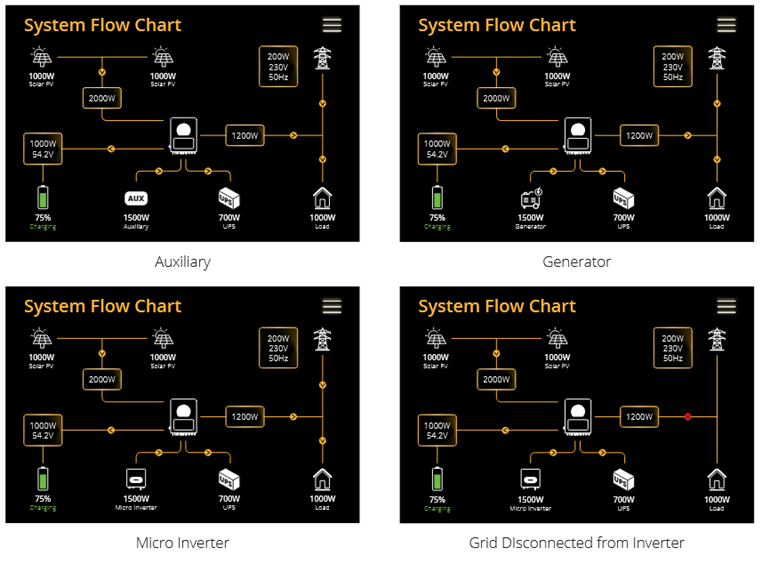
The System Flow Chart screens provide visual representations of how energy flows within the system, tailored to specific installation configurations. These charts allow users to understand and monitor how power is distributed among key components of the system, such as solar panels, batteries, inverters, and loads, under various
operating conditions. Access this screen by tapping the “System Flow Chart” option in the Menu.
Menu | System Grid Information
The System Grid Information screen provides detailed insights into the daily, monthly, yearly, and total energy exchanged with the grid. It displays whether power is being imported from or exported to the grid. This page is crucial for understanding grid interaction, monitoring energy usage, and tracking power consumption or generation over time.
Access this screen by tapping the “System Grid Information” option in the Menu. This information is already shown in the Home | Grid page section (page 46 of User Manual).
Was this article helpful?
That’s Great!
Thank you for your feedback
Sorry! We couldn't be helpful
Thank you for your feedback
Feedback sent
We appreciate your effort and will try to fix the article