The Home Screen serves as the central dashboard of the Acure Hybrid Inverter, providing users with an immediate and intuitive overview of the system's key metrics. From here, users can monitor the most important data, navigate to different sections, and control essential functions with ease.
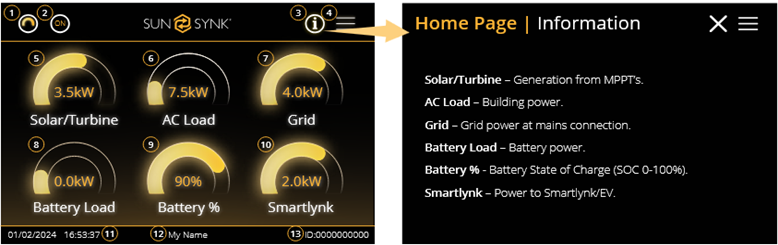
① System Flow Icon: Tapping this icon opens the System Flow Chart screen, providing a visual map of how power is distributed between solar, battery, grid, and loads.
② Smart Devices Icon: Leads to the Smart Devices screen, allowing users to interact with and monitor any connected smart devices.
③ Information Icon: Opens the Home Page Information screen, which explains each data icon.
④ Menu Icon: Leads to the main menu, where users can access setup options, smart features, advanced configurations, and more.
⑤ Solar/Turbine: Shows real-time energy generation from solar panels or turbine. Tap to access the Solar/Turbine Setup screen, which includes daily, monthly, yearly, and total solar generation stats.
⑥ AC Load: Displays the amount of power currently being used by the AC loads. Tap to access the AC Load screen for detailed usage monitoring.
⑦ Grid: Indicates the power being drawn from or exported to the grid. Tap to access the Grid screen and view energy import/export graphs over time.
⑧ Battery Load: Displays the real-time battery power flow. This value shows whether the battery is charging or discharging, in kilowatts. Tapping this icon opens the Li BMS (Battery Management System) screen, where users can monitor battery performance in greater detail.
⑨ Battery %: Indicates the State of Charge (SOC) of the battery, displayed as a percentage (0–100%). Tapping this icon also leads to the BMS screen.
⑩ Smartlynk: Displays the power directed to Smartlynk systems or EV charging. Tap to open the Smartlynk Setup screen and configure smart energy flow preferences.
⑪ Date & Time: Displays the current system date and time in real time (e.g., 01/02/2024 – 16:53:37).
⑫ Username: Indicates the name of the current user or administrator operating the interface (e.g., "My Name").
⑬ System ID: Displays the inverter’s unique system identifier (e.g., ID:0000000000), useful for system tracking, service, and diagnostics.
Was this article helpful?
That’s Great!
Thank you for your feedback
Sorry! We couldn't be helpful
Thank you for your feedback
Feedback sent
We appreciate your effort and will try to fix the article