As part of the setup of your Sunsynk system you will be required to configure your Wi-Fi Datalogger to get your system connected to your plant the Sunsynk Connect portal. As part of this process you will need to connect to the datalogger and enter the configuration menu to get it connected to your local Wi-Fi network.
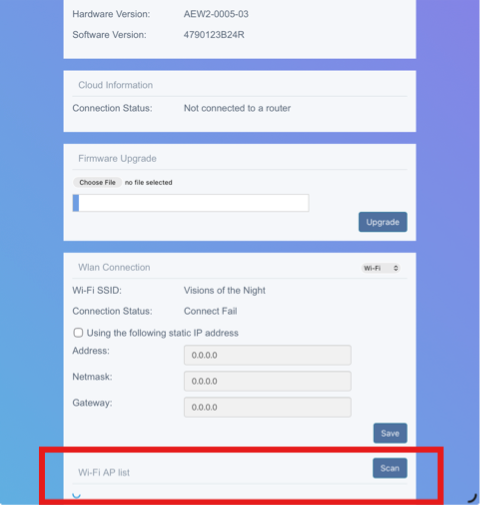
To search for local Wi-Fi networks, you navigate down to the WLAN Connection section and press the Scan button, highlighted at the bottom of the below screenshot.
If your Wi-Fi network is online but is not appearing when searching in the configuration menu then we would advise checking the below settings on your WLAN/router. Before checking these settings, you should have a steady red light on the datalogger to ensure that it is receiving power.
Bandwidth
Sunsynk Dataloggers are only compatible with 2.4Ghz networks - if the WLAN is configured to dual band or triple band it may not be recognised by the datalogger. The Wi-Fi router should be able to be configured
Wi-Fi Type
Sunsynk Dataloggers are compatible with Wi-Fi 6 and Wi-Fi 6e (provided the router device has backwards compatibility with Wi-Fi 6 devices) if it supports the 2.4Ghz bandwidth. Although Wi-Fi 7 routers are compatible with 2.4Ghz band devices we often see instances where the dataloggers will not recognise the network.
Security Settings
The network security required for Sunsynk Dataloggers to connect to the WLAN must be WPA2 or WPA2/3 adaptable. There are issues when trying to connect to networks with WPA3 only security settings.
Wi-Fi Extenders/Mesh Network
If the datalogger is not recognising the Wi-Fi network when the bandwidth, Wi-Fi type and security settings are all correct this can often be due to interference from Wi-Fi extenders or mesh network nodes can cause signal interference. It is more commonly an issue with mesh networks but can also occur with normal extenders. We recommend trying to disable them until the initial setup is complete and then reinstating them afterwards.
Other Solutions
- Reset datalogger by disconnecting it from the inverter and then reconnecting it
- Have Sunsynk Support check if a datalogger firmware update might be required
- Try another datalogger if there are others available to use
- Restart router
- Test using a hotspot on a mobile device with 4G/5G internet to assess whether this hotspot appears instead
Was this article helpful?
That’s Great!
Thank you for your feedback
Sorry! We couldn't be helpful
Thank you for your feedback
Feedback sent
We appreciate your effort and will try to fix the article