Lifelynk - Viewing External Battery Data

Created by Bryonie Simon, Modified on Sat, 9 May at 12:11 PM by Bryonie Simon

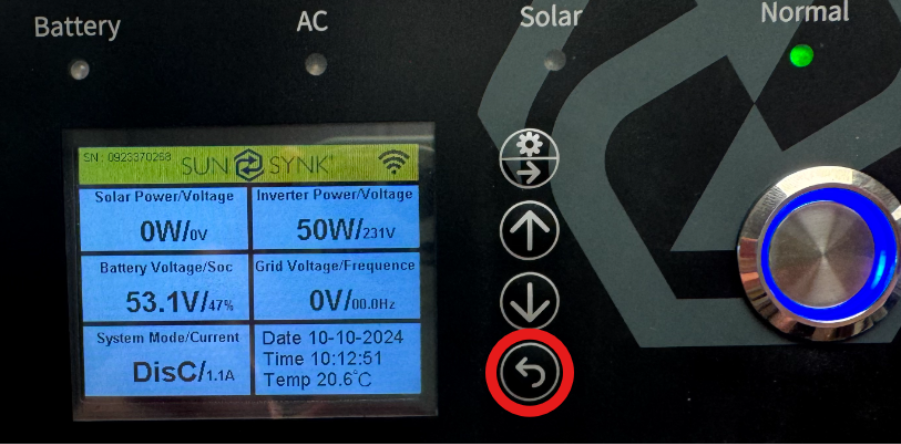
From the Lifelynk/Powerlynk Home screen you can cycle through several pages of information using the return button. 
A screen shot of a device 
Description automatically generated 


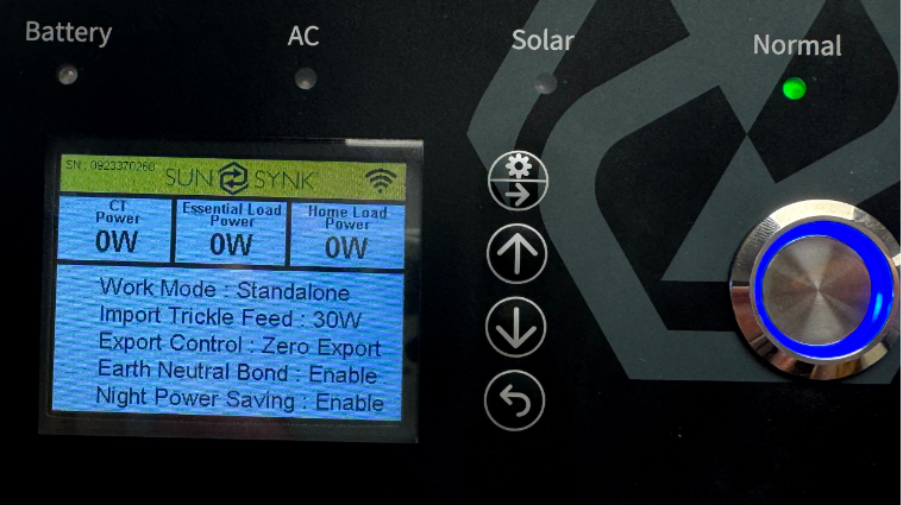
One Press: 

A screen with text and icons 
Description automatically generated with medium confidence 

CT data and set-up overview. 


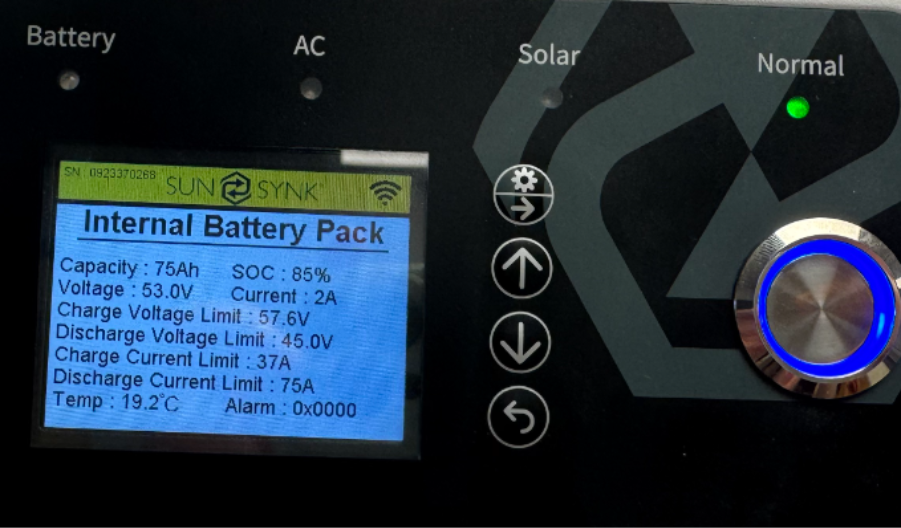
2 Presses: 
A screen shot of a device 
Description automatically generated 

Internal battery BMS data. 


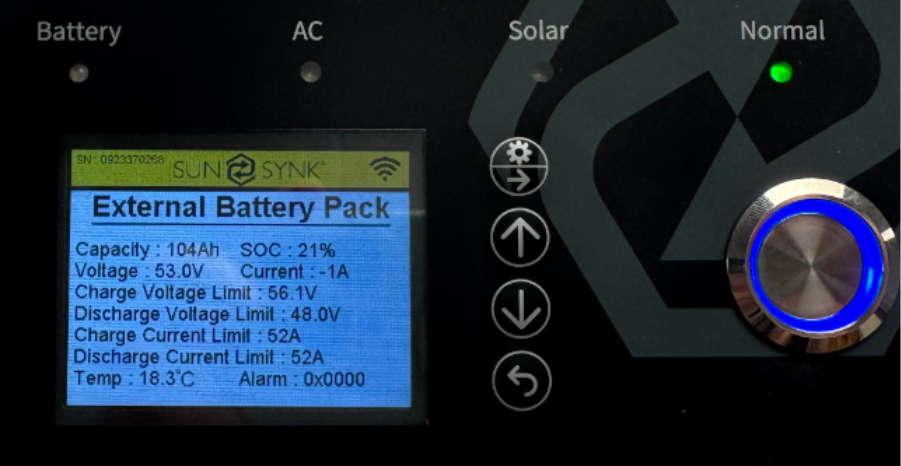
3 Presses: 
A screen with text and symbols on it 
Description automatically generated 

External Battery BMS data. 


Pressing the return button a fourth time will cycle you back to the home screen. 

Was this article helpful?

That’s Great!

Thank you for your feedback

Sorry! We couldn't be helpful

Thank you for your feedback

Let us know how can we improve this article!

Select at least one of the reasons
CAPTCHA verification is required.

Feedback sent

We appreciate your effort and will try to fix the article