It is possible to use the three-phase meter Eastron SDM630MCT, with our single-phase string inverters or you can use the single phase eastron meter SDM120CTM, Though only the phase eastron meters can be used with three phase system. Please note that this guide is based on the Eastron CT clamp version, SDM630MCT. Another compatible three-phase meter model is the SDM630MCT v2; connection remains the same, but settings on the device vary (please refer to the meter manual for an overview on these changes).
Step 1
Connect Power to Eastron (Three phase Eastron)
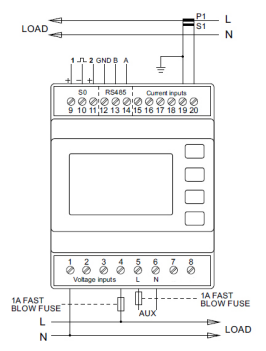
As per the above diagram, you’ll need to create a bridge from connection 5 labelled LA to phase 1 (connection 4) and create a bridge from connection 6 labelled NA to the neutral (connection 1).
Connecting a Single phase Eastron
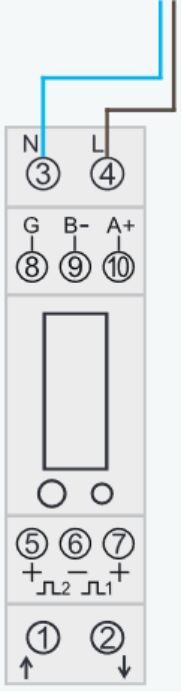
To power the single phase eastron connect live to port 4 and Neutral to port 3
Cable from Eastron to the Inverter (Single Phase Only)
Using one end of the data cable CAT 5/CAT 6 – Choose which solid coloured cable (eg Brown) to connect A+ and choose its opposite Colour / White cable (eg Brown/White) and connect to B-.
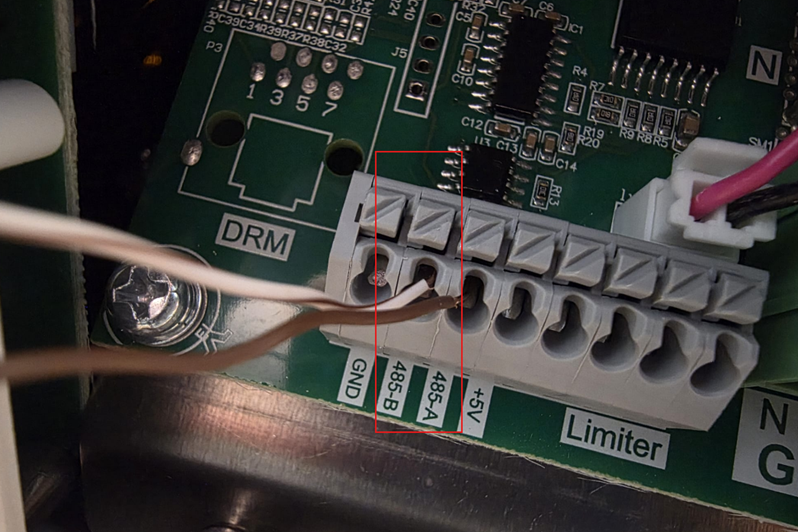
With the other end of the data cable use the same corresponding colours and connect them into the string inverter making sure the same colour cable that is in A+ and connect to B- are in the corresponding 485-A and 485-B (These connections can be found next to the grid connections)
For the single phase eastron meters no settings need to be changed as this already comes preconfigured.
Please now move to step 5 if using a single phase meter
Step 2 – Connect the CT Clamps
On the Live tail from the incoming supply between the Meter and the consumer boardThe CT clamp has an arrow that MUST face towards the loads (consumer unit).
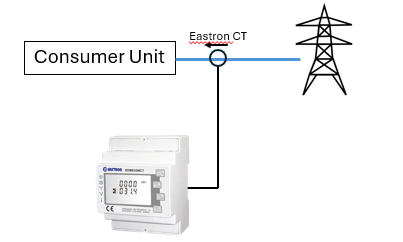
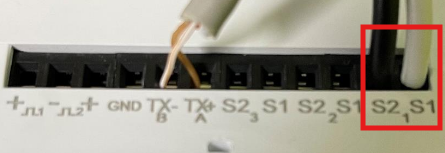
The white cable should then be connected into S11 and the black cable should be connected into S21.
Step 3 – Cable from Eastron to the Inverter (Three phase Only)
Using one end of the data cable CAT 5/CAT 6 – Choose which solid coloured cable (eg Brown) to connect into TX+A (connection 14) and choose its opposite Colour / White cable (eg Brown/White) and connect to TX-B (connection 13).
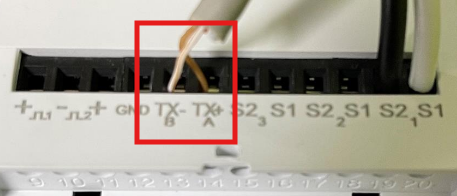
With the other end of the data cable use the same corresponding colours and connect them into the string inverter making sure the same colour cable that is in TX+A (connection 14) and connect to TX-B (connection 13) are in the corresponding 485-A and 485-B (These connections can be found next to the grid connections)
Step 4 – Settings on the Eastron
When setting up the unit, some screens require the number entering. On entry to the setting up section, a password must be entered. Digits are set individually, from left to right. The procedure is as follows:
1) The current digit to be set flashes and is set using the  and
and  buttons
2) Press  to confirm each digit setting. The SET indicator appears after the last digit has been set.
3) After setting the last digit, press  to exit the number setting routine. The SET indicator will be removed.
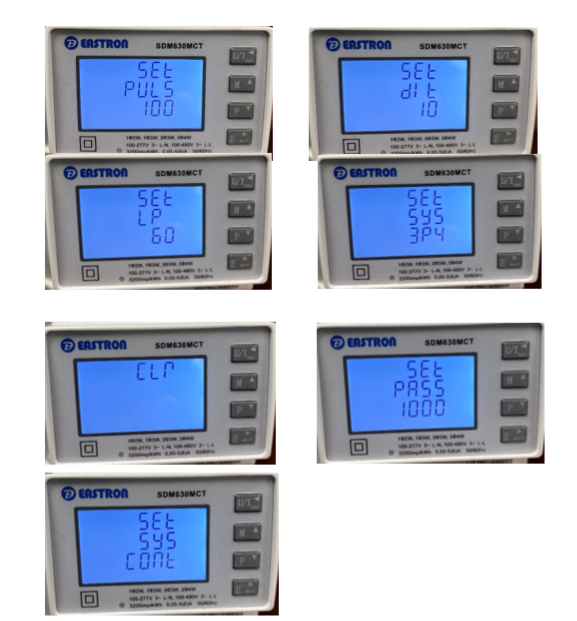
To enter set-up mode, press the  button for 3 seconds, until the password screen appears. The password is 1000.
Please follow the settings below and change where needed to meet the same values as shown (These settings are for the supplied 15A/1A CT clamps; CT1 and CT2 will need to be changed accordingly if a different sized CT is used). CT ratio settings can only be set once – if further changes are required, you will need to contact Eastron for an override password.
Step 5 – Settings on the inverter

Measure grid and max export
If you just want to use the eastron meter to measure the grid and load with max export NO configurations or settings changes need to be made, this is auto for the string inverters.
Limit export so PV power covers load
If you would like to limit the export so the PV power only covers the load.
The setting enable meter will need to be ON.
From the home screen press 
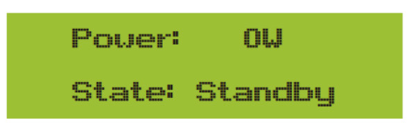
press  until setup has << next to it and press

Press  so the RUN PARAM has << next to it and press

On the password screen use 
 arrows to change the numbers and press
  to move across to the next number the password is 1234

Use the  arrow to scroll down until Meter has << next to it and press
  You can use the
  arrow again till it says ON then press
  to confirm

After this scroll down to the very bottom until you see the OK with << next to it and press 
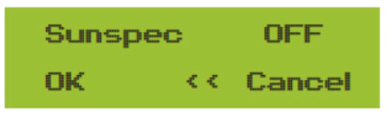
This should now take you back to the main screen and the meter setting will be active.
If you have any trouble with the above please get in contact with us.
Was this article helpful?
That’s Great!
Thank you for your feedback
Sorry! We couldn't be helpful
Thank you for your feedback
Feedback sent
We appreciate your effort and will try to fix the article